Next Virtual WAIUG Meeting Dec 11th at 9:30am EST

Our next WAIUG meeting is approaching! We are proud to be partnering with the IIUG to do this webinar. We have several excellent technical presentations.

  • IDS 15.0 – Unlimited and Future Proof –  John Lengyel (HCL)
  • Text to SQL Agent powered by Informix and Watsonx – Xavier Escoté (Deister)
  • Informix Encryption Everywhere Everyway – Thomas Beebe (xDB Systems)

Attendance is free, just click on the register button below to RSVP for the event.

Obtaining a History of Database Size

Mike Walker (mike@xdbsystems.com)

Tracking the space used by your Informix instance over time is valuable to make sure that sufficient disk is provisioned for future growth.
This should be one of several metrics that the DBA should be recording at regular intervals.
But what if you don’t have that history? The sysmaster:sysfeatures table can provide the database size (total allocated and used), each week, for up to 5 years.
Use a query similar to the following to obtain this history:
select
year||"-"||to_char(week, "&&") period,
total_size,
total_size_used
from sysmaster:sysfeatures
order by year, week;

Example:

period           2025-07
total_size       10.6 TB
total_size_used  7.71 TB

period           2025-08
total_size       10.7 TB
total_size_used  7.73 TB

period           2025-09
total_size       10.7 TB
total_size_used  7.75 TB

period           2025-10
total_size       10.7 TB
total_size_used  7.75 TB

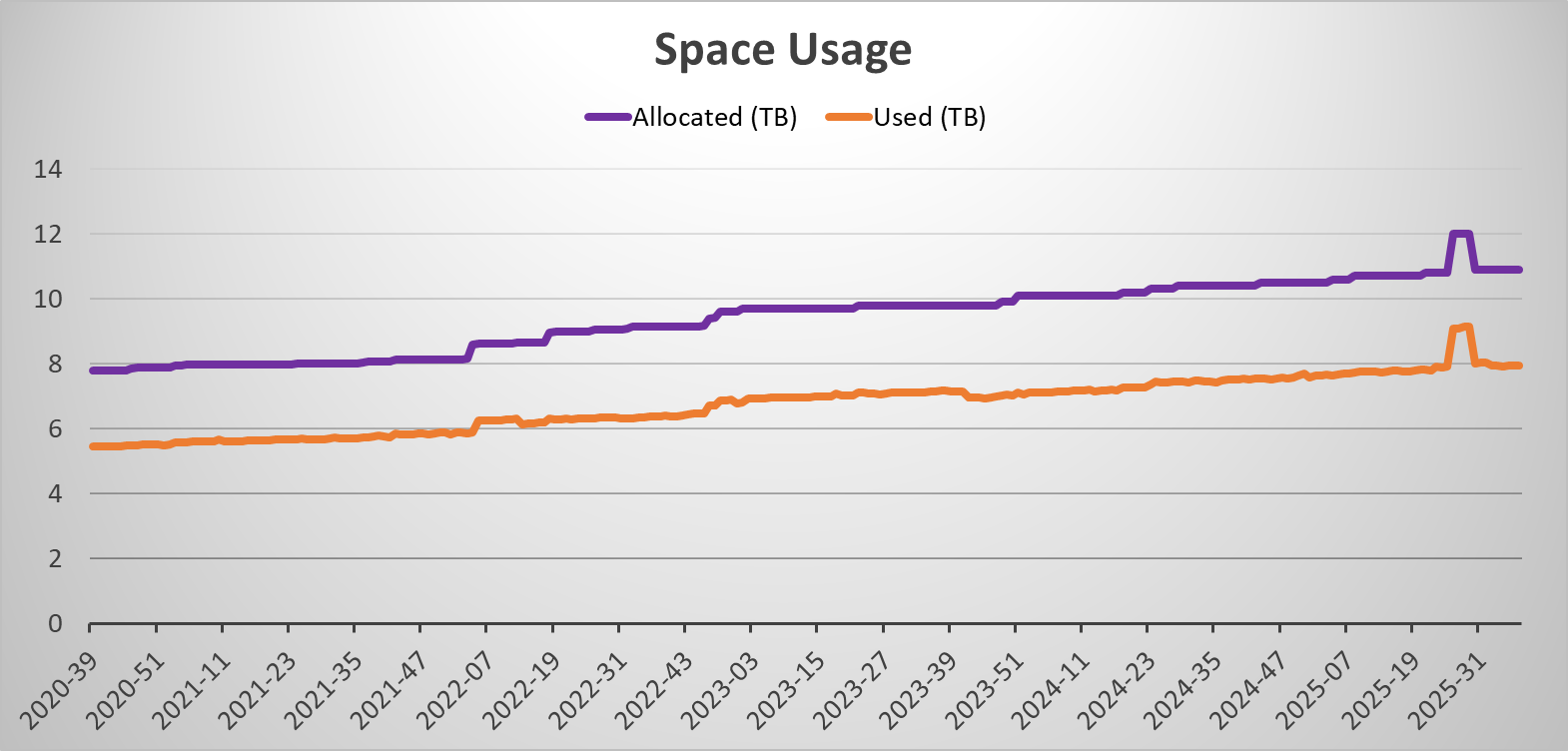
Loading this data into a spreadsheet gives the ability to plot how the Informix instance has changed in size.

We can use this same data to answer various questions such as, “how much space has been allocated over the last 12 months?”.
The sysmaster:sysfeatures table has multiple metrics and other information, all of which can be used to show how the instance has changed over time. Among other things, this includes the number of connections, the memory used, and the instance’s role in a cluster. The following is an example showing the most recent record in this table and the information that is recorded:
select first 1 *
from sysmaster:sysfeatures
order by year desc, week desc

week 38
year 2025
version 14.10.FC3
max_cpu_vps 15
max_vps 33
max_conns 298
max_sec_conns 0
max_sds_clones 0
max_rss_clones 0
total_size 10.9 TB
total_size_used 7.95 TB
max_memory 111 GB
max_memory_used 107 GB
is_primary 0
is_secondary 0
is_sds 0
is_rss 0
is_er 0
is_pdq 1

SSL Certificates With 14.10FC10 and Later Changes

In FC10 IBM changed the requirements when using gskit so -type cms no longer works. The engine will come up with it but you will find you get a generic GSK8 error: “cannot initalize GSKit secure socket/GSK_ERROR_SOCKET_CLOSED” with no other information.

To get around this create a new keystore for clients in the .p12 format. Older certificates can be cleanly imported to provide backwards compatibility with older Informix systems already running ssl.

You need to add the -type pkcs12 -pqc false flags for this to work cleanly.

gsk8capicmd_64 -keydb -create -db clikeydb.p12 -pw my_password -type pkcs12 -pqc false -stash
gsk8capicmd_64 -cert -add -db clikeydb.p12 -stashed -file server.cert

Make sure to update $INFORMIXDIR/etc/conssl.cfg to use the .p12 filename rather than .kdb

Tom Beebe (tom@xdbsystems.com)

Setting Up Informix HQ With SSL

As security gets more important, and auditors get stricter about encrypted data we all want to make sure our environments have our data protected as much as possible.
Informix HQ is a great tool to help you manage your Informix environment, it doesn’t take too long to set up and can be incredibly valuable to your organization.

Once you have it set up you may notice that the communication between the HQ server and the agent are unencrypted, so lets change that.

In this example we will have the HQ system set up using the default: monitoring-server.properties and monitoring-agent.properties that can be found from the example files in $INFORMIXDIR/hq

The HQ system is set up with 2 different agents deployed to 2 Informix servers. We are going to reconfigure it to work exclusively over ssl. At this point stop the agents and the server.

Our first step is to use the java keystore tool ‘keytool’ to create a new keystore for us to use. Make sure to save the password you choose. In $INFORMIXDIR/hq run:

keytool -genkey -keyalg RSA -alias selfsigned -keystore hq_keystore.jks

When it prompts for “What is your first and last name?” make sure to put in the hostname of the HQ server. This needs to be the hostname that both the Informix server knows as well as the hostname you will use to connect to from browsers.

Next we need to modify monitoring-server.property file to enable SSL on the webserver, change:

httpsPort=8443  # This can be any secure port you want to use
redirectHTTPtoHTTPS=true
ssl.keystore.file=/opt/informix/hq/hq_keystore.jks
ssl.keystore.password=<password for the keystore above>

Note that some operating systems will not let non-root users start services on ports < 1024.

The log file should contain:

2024-11-29 15:45:25 [main] INFO  c.i.h.s.JettyServer - Serving UI from JAR...
2024-11-29 15:45:26 [main] INFO  c.i.h.s.JettyServer - Configuring server for HTTP on port 8080
2024-11-29 15:45:26 [main] INFO  c.i.h.s.JettyServer - Configuring server for HTTPS on port 8443

At this point if you go back to the url you will see it redirect you to the new https port (8443) and you will get a browser warning about a self signed certificate. This is fine to approve.

Next we need to get our agent to know about the SSL listener. First we need to pull the server certificate from the server keystore:

keytool -export -alias selfsigned -file server_cert.cer -keystore hq_keystore.jks

Next we need to create a new agent keystore, this will import the certificate from above and create a new keystore, give it a unique password

keytool -import -v -trustcacerts -alias selfsigned -file server_cert.cer -keystore agent_certs.jks

In the monitoring-agent.properties file change:

server.port=8443
ssl.enable=true
ssl.keystore.file=/opt/informix/hq/agent_certs.jks
ssl.keystore.password=<password above>

Bring up the agent as normal. You should see it connect and behave as normal, however now it will be communicating over encrypted channels. You can do the same keytool agent creation on any remote systems, or just copy the jks file over to them.

Tom Beebe (tom@xdbsystems.com)
xDB Systems Inc

Smartblob cdr sync Vs cdr check repl

Informix ER has a number of ways to move data in replicates.
I was doing performance testing of transferring smartblob data from an old server to a new one. The target table was empty for this test. It was about 5gb composed of 100K sized smartblob records.

Logging Modecdr synccdr check repl
Logging Off5:349:30
Logging OnLogical Log Rollback (DNF)9:54

Obviously having smartblob logging on for important data is the preferred way to do it. You *can* lose data with an engine crash if smartblob logging is off, even if the table itself is logged. However for copies, the fastest way may be with it disabled.

Next Virtual WAIUG Meeting

We have another amazing WAIUG meeting coming up in November 2024. It will be another virtual one partnering with the IIUG.
We are currently in need of speakers. If you have an interesting topic you would be interested in presenting please reach out to us using the contact form.

Stay tuned for more information!

Remove Newlines From an Informix Unload File

Informix character fields can contain special characters and even newlines. This allows for formatted data, e.g. a list spanning multiple lines within a single field. A newline is also an end of record character when a table is unloaded to a file, e.g. with the UNLOAD command, a dbexport, or optionally in an external table. To distinguish a literal newline character in the unload file, Informix escapes the newline with a backslash (“\”) to indicate that the next character does not have any special meaning. Note that the escape character can be changed by setting DEFAULTESCCHAR in the Informix configuration file ($ONCONFIG), or as a session environment variable.

When a file is loaded into a table with Informix, the escape character itself is not inserted into the table but instead directs the load to insert the following newline as a literal newline and to not treat it as the end of the record.

When loading such a file into a non-Informix database, the special significance of an escape character is not supported, and instead the loading utility will attempt to load the escape character itself and will then treat the embedded newline as the end of the record. This will usually result in an error because the record will have too few fields. Loading into Oracle for example may show as:

ORA-01722: invalid number

The usual solution for this condition is to convert the unload file and strip out the 2-character combination of backslash + newline. Most Unix utilities will also treat newlines as an end of record characters so you cannot just use a simple “search and replace” regular expression to identify and remove these combinations. There are several ways to tackle the problem, but I use the “sed” command with the “N” operator to pull up the following line when a line ends in a backslash, then remove the backslash + newline and replace it with a “space”. I choose to substitute a space for the newline to preserve readability in cases where the field may have contained a list.

The following is an example of a script that will perform this conversion. It also:

  • Strips return characters from the unload file
  • Replaces literal “\” characters, shown as “\\” in the unload file with a single backslash

The script assumes that the default character of “\” is used to escape newlines in the file.

INFILE=$1

if [[ ! -s "${INFILE}" ]]
then
   echo "File $INFILE does not exist or is empty"
   exit 1
fi

cat ${INFILE} | tr -d "\015" | sed '
:loopy
/\\$/{
N
s/\\\n/ /g
/\\$/b loopy
};
s/\\\\/\\/g
'


Input file (tstfile):

AAA|BBB|CCC|
DDD\
D\
DDD|EE\
EE|F\
F|
GGG|HHH|I\
II\
I|
JJJ|KKK|LLL|
MMM|List #1 - 1\\2 a thing\
List #2\
List #3|NNN|


Results:

./remove_nl.sh tstfile

AAA|BBB|CCC|
DDD D DDD|EE EE|F F|
GGG|HHH|I II I|
JJJ|KKK|LLL|
MMM|List #1 - 1\2 a thing List #2 List #3|NNN|

Mike Walker (mike@xdbsystems.com)
IBM Data Champion

Using Informix SSL With External CA and OpenSSL

Informix SSL is an important piece of your security setup when running a relational database.
The Informix server is still set up to use GSKit from IBM to handle the internal server keystore. Clients are free to use openssl. In this article we are going to cover step by step how to set up SSL using a key generated from an external certificate authority (CA) rather than doing self-signed ones generated by the local server. All of the examples here are assuming a 64bit Linux system. Windows will use the same method and 32bit systems will have a different gsk8capicmd tool.

Settings for this example:

INFORMIXSERVER=informix4
INFORMIXDIR=/opt/informix
Primary listener: informix4  onsoctcp 9088
SSL Listener: informix4_ssl onsocssl 9089
SSL_KEYSTORE_LABEL: test_ssl_label
Keystore Password: my_password

The first step is to go to $INFORMIXDIR/ssl and create your empty keystore using GSKit. Note that it has to be named the same as the DBSERVERNAME

gsk8capicmd_64 -keydb -create -db informix4.kdb -pw my_password -type cms -stash

Next use GSKit to generate a CSR (certificate request file)

gsk8capicmd_64 -certreq -create -db informix4.kdb -stashed -label test_ssl_label -dn "CN=xdbsystems.com" -size 2048 -sigalg SHA256_WITH_RSA -target informix4.csr


Use that file to request a new public/private keypair from your CA. Different systems will handle this differently so talk to your security administrators.

Next Add the management chain certificates to the keystore

gsk8capicmd_64 -cert -add -db informix4.kdb -pw my_password -file ManagementCA-chain.pem

Next import the new server certificate you received from the certificate request

gsk8capicmd_64 -cert -receive -db informix4.kdb -stashed -file informix4.pem

Validate the keys are there

gsk8capicmd_64 -cert -list -db informix4.kdb -stashed
Certificates found
* default, - personal, ! trusted, # secret key
!       "O=EJBCA Container Quickstart,CN=ManagementCA,UID=c-0fno0f82c4y4p6umb"
-       test_ssl_label

Bring the engine up, you should see the following

Forking 1 'soctcp' listener threads...succeeded
Forking 1 'socssl' listener threads...succeeded

Next set up a client, on the client system create a keystore, make sure clientsdk is installed with the option to use openssl. This creates the keystore and loads in the root CA chain

openssl pkcs12 -export -nokeys -in /opt/informix/ssl/ManagementCA-chain.pem -caname "O=EJBCA Container Quickstart,CN=ManagementCA,UID=c-0fno0f82c4y4p6umb"  -passout pass:my_password -out client1.p12

Create the stash file

onkstash client1.p12 my_password

Set up the client to have conssl.cfg in $INFORMIXDIR/etc:

SSL_KEYSTORE_FILE  /opt/informixcsdk/ssl/client1.p12
SSL_KEYSTORE_STH /opt/informix/ssl/client1.sth

Now you can validate that the client only needs the CA information to validate the certificates, note there is no Informix server specific key, just the CA chain.

openssl pkcs12 -nokeys -info -in client1.p12 -passin pass:my_password
MAC: sha256, Iteration 2048
MAC length: 32, salt length: 8
PKCS7 Encrypted data: PBES2, PBKDF2, AES-256-CBC, Iteration 2048, PRF hmacWithSHA256
Certificate bag
Bag Attributes
    friendlyName: O=EJBCA Container Quickstart,CN=ManagementCA,UID=c-0fno0f82c4y4p6umb
subject=UID = c-0fno0f82c4y4p6umb, CN = ManagementCA, O = EJBCA Container Quickstart
issuer=UID = c-0fno0f82c4y4p6umb, CN = ManagementCA, O = EJBCA Container Quickstart
-----BEGIN CERTIFICATE-----
MIIEszCCAxugAwIBAgIUZ3v7iIk5DxAxtF8jMELOef9Lp3cwDQYJKoZIhvcNAQEL
BQAwYTEjMCEGCgmSJomT8ixkAQEME2MtMGZubzBmODJjNHk0cDZ1bWIxFTATBgNV
BAMMDE1hbmFnZW1lbnRDQTEjMCEGA1UECgwaRUpCQ0EgQ29udGFpbmVyIFF1aWNr
c3RhcnQwHhcNMjQwOTEwMjEwNDE4WhcNMzQwOTEwMjEwNDE3WjBhMSMwIQYKCZIm
iZPyLGQBAQwTYy0wZm5vMGY4MmM0eTRwNnVtYjEVMBMGA1UEAwwMTWFuYWdlbWVu
dENBMSMwIQYDVQQKDBpFSkJDQSBDb250YWluZXIgUXVpY2tzdGFydDCCAaIwDQYJ
KoZIhvcNAQEBBQADggGPADCCAYoCggGBAJv+MpjjAHh5msYkw8KwSJ5HSW79jofS
Mt9ruk7A85Ac+xFEA3IM9i1T9PISdwWzopCz/d1T3JYEpngKyUex9DANOLoKqTyp
XDm6Yyj6YH0vxNLEroQJBpvw6SCHKBO6EjZkAAecCOnYmT95QPdF2w5u5Kk1X7yg
VV59HIYxVd3xZVW2llrHH+u4pIeNruSotvRalpEddXdve1Ym0uoexRc5q4z44wwz
0uWwOaQZv7vGmTkfNT6nUqCqw/M6STJpyadNVMEyUeXHfuNNQbJ6UqyWAKH4fFGZ
V6jjKMENEC2f5I8BR5xB1hjWbVsOHuGCKLeRuP0Hq14B3JCaUFK7CLtpXVlLEWJ1
3Cm2SbNWUmVveEMXEN6L8BVwGdyyFtM2AsP/RNcKWSMiInGe39Hr4XpVN1tPqHCm
gh8ug/7v3n96aC2138oIjcrWVtGdAuo4Cb9N9/cOBnnyOp/Yof4Hlru9wyTSxMTo
yDQToNw6xk3/w5ueJDkAlMQD715lknEp8QIDAQABo2MwYTAPBgNVHRMBAf8EBTAD
AQH/MB8GA1UdIwQYMBaAFG4HtnbBN31dyfzLpmqyLgveCnl+MB0GA1UdDgQWBBRu
B7Z2wTd9Xcn8y6Zqsi4L3gp5fjAOBgNVHQ8BAf8EBAMCAYYwDQYJKoZIhvcNAQEL
BQADggGBACHAeek2OHKhrHW80t0hWWa83sXNFbKFc1hxb5H9GcT4UueTeKirfy+U
mW3sY5L5MzFTVUoqHpdg7mYH7GGszyUZPnZL6iCZJwZs4QDraDl1cuxHa4JQRQtV
LLMDVGL40Qc2p3bhkw3HOcJHD4wDVg4bazoLizyrsMk1rKNWvjQnHI7Ci/AcN7r0
8Yt8OWQjYdlSHLKBj0H03vZXPGzlr5j+aJGEXorGRHXkiMEntaUM2XZeyL5y1uSo
NnegwX7WvrT/LFx7EYN3LCNbnlph7BCoeF8TNdPVFOIFx/zxJDiIdYuB7nop3ZHN
SABgCxVKTzetHlt//DC/NIa5pfVXwRTKFuMvqjk/Zri4bXGjf/GaS9hRqLI43KoF
Urq3oLtIJPTbF8AxgFXxEaa863nNAta8yEO05ulDrQF9uGiGKjenTlsTY+bor8nr
FM/jwVNwGTFaddsWPcVNak5ayMQioSNn2/GWE52LyWhNaIBAZy05/5VrAJTnVWZL
whKy/ea4hQ==
-----END CERTIFICATE-----

Note with the Informix CSDK. As of newer Linux versions, the older libssl.1.1 it expects is no longer available. You may need to install a libssl compat library to get the libraries needed. You may also need to symlink $INFORMIXDIR/lib/libisi_o11.so.3.0 to $INFORMIXDIR/lib/libisi.so.3 if it returns an error that the file is missing. Hopefully this will be corrected in the next edition of Informix to support the newer openssl libraries that are standard.

Thomas Beebe
tom@xdbsystems.com
IBM Data Champion